A QR code ordering system lets guests scan a code on their table, open your menu in their phone's browser and send their order straight to the kitchen, without waiting for someone to take it. The order arrives on a kitchen screen with the table number attached, the counter can close the bill from that same order, and you can watch the whole service from a dashboard. A good system does all of that without an app download, and lets you change the menu in the middle of service.
That is the short answer. The longer one matters more if you are choosing a system, because the difference between a good one and a frustrating one lives in the details: what the guest sees, what happens in the kitchen, how the counter and owner fit in, and what breaks on a busy night. This guide walks through each part, then gives you a checklist and the common mistakes to avoid.
How a QR code ordering system works for guests
From the guest's side, the flow has four steps. Each one has a way to get it right and a way to get it wrong.
1. Scan
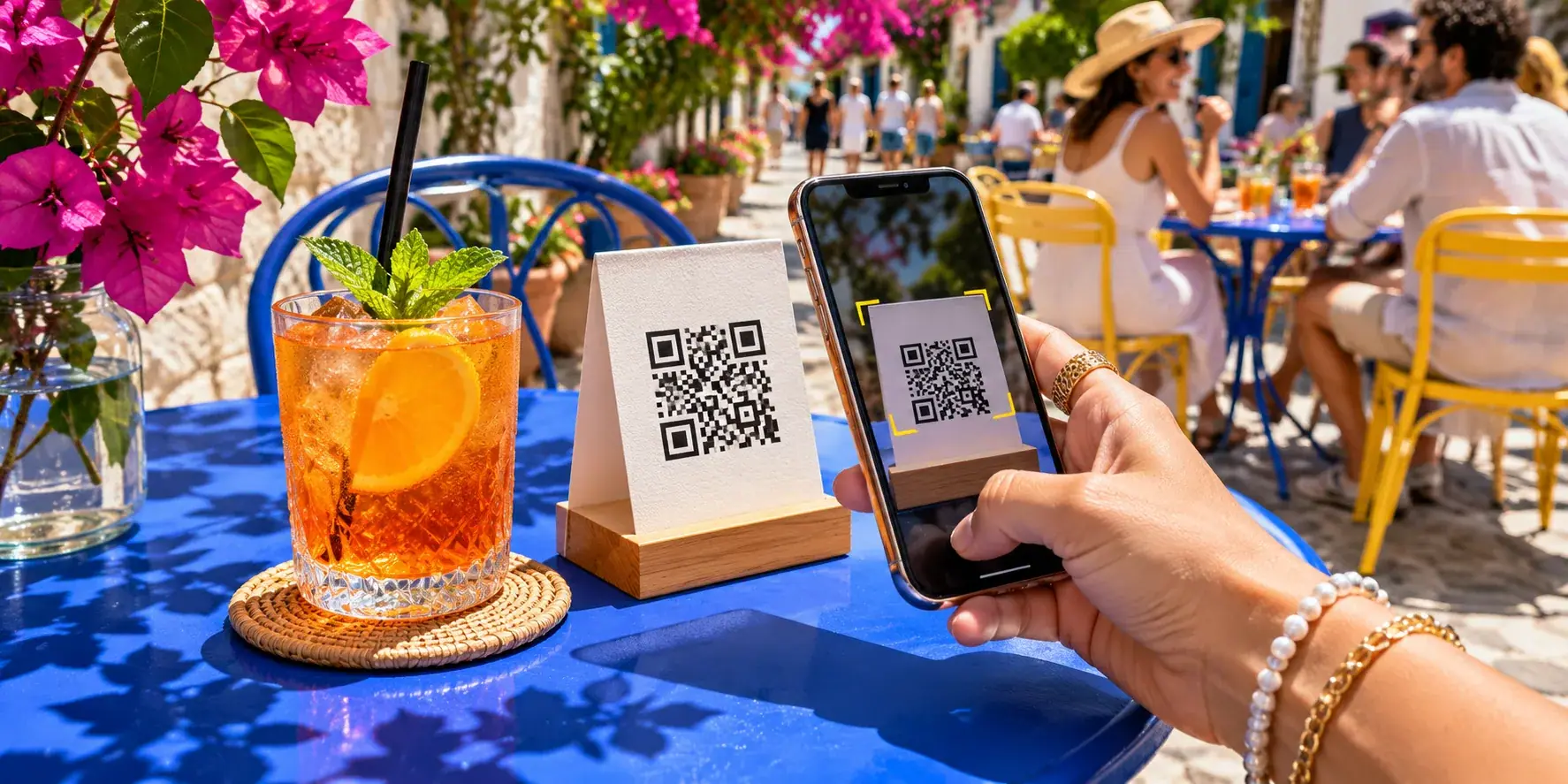
Every table has its own code. That is the important part: the code does not just open a menu, it tells the system which table is ordering. Modern phone cameras read QR codes without any extra app, so the guest points, taps and the menu opens in the browser. In effect it is an order at table app with nothing to install.
If the system asks the guest to download an app, create an account or type in a table number before they can see the menu, you have already lost some of them. The point of contactless ordering in a restaurant is that it is quicker than waving for a waiter. Anything that makes it slower defeats the purpose.
2. Browse
The menu should be a proper menu, not a PDF of the printed one. That means photos, prices, portion options, add-ons and allergens sitting with each dish, readable on a small screen, in a venue that may be dimly lit.
It should also be live. If you change a price or a dish runs out, every table should see that within moments, not after someone remembers to update a file.
3. Order
The guest picks dishes, adds notes ("no chilli", "sauce on the side") and sends the order. It goes straight to the kitchen with the table number on it. Nobody writes anything down, carries a ticket or types it into a till.
Good table ordering systems also make it easy to order again later. The second round of drinks or a dessert should be as simple as the first order.
4. Ask for help
This is the step people forget. Guests do not only want to order. They want water, the bill, or a person to talk to. A one-tap request that shows staff which table needs what, and lets staff mark it seen and then done, is often as useful as the ordering itself.
The kitchen side: what a kitchen display system should do
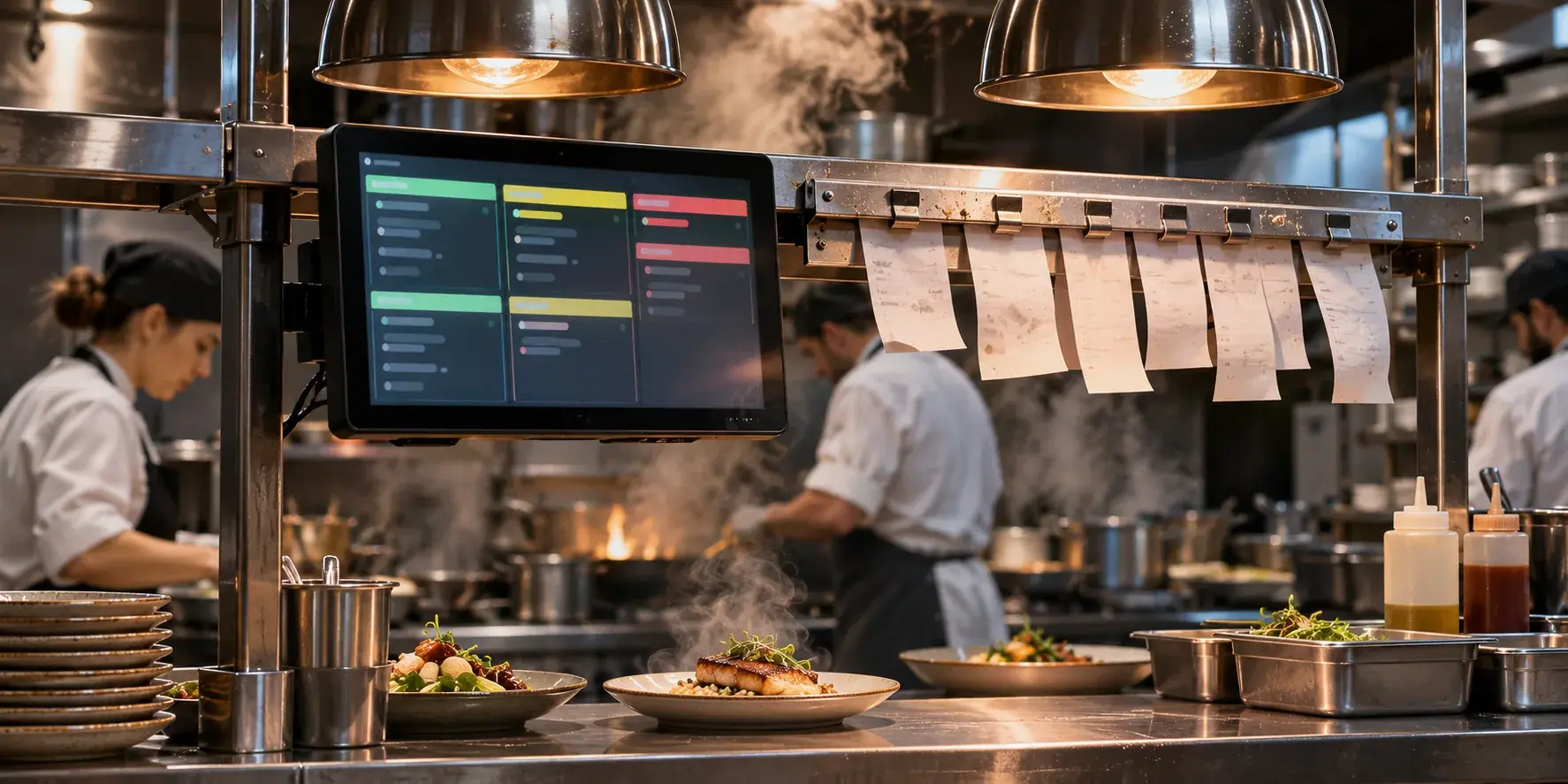
Guest ordering only works if the kitchen can keep up with it. That is where a kitchen display system comes in: a screen that replaces paper tickets and shows every order in one place.
What a good kitchen display system does:
- Shows orders oldest first. The kitchen should never have to work out what is next. The order at the top is the one that has waited longest.
- Keeps the table number on every order. Whoever runs the food should not have to ask where it goes.
- Attaches notes to the dish, not the order. "No chilli" belongs on the curry, not floating at the bottom of a five-dish ticket where it gets missed.
- Marks orders ready with one tap. Cooks have wet hands and no time. Anything that needs more than a tap will not get done during a rush.
- Brings every channel into one list. Table orders, counter orders and phone orders should all arrive on the same screen. Two systems in one kitchen means someone is always retyping.
On the practical side, the screen needs to be where the cooks can see it from where they actually stand, readable from a step or two away, and somewhere it will not get splashed. If your kitchen has no screen at all, a basic tablet can often do the job, as long as the system runs in a browser.
The counter and the dashboard
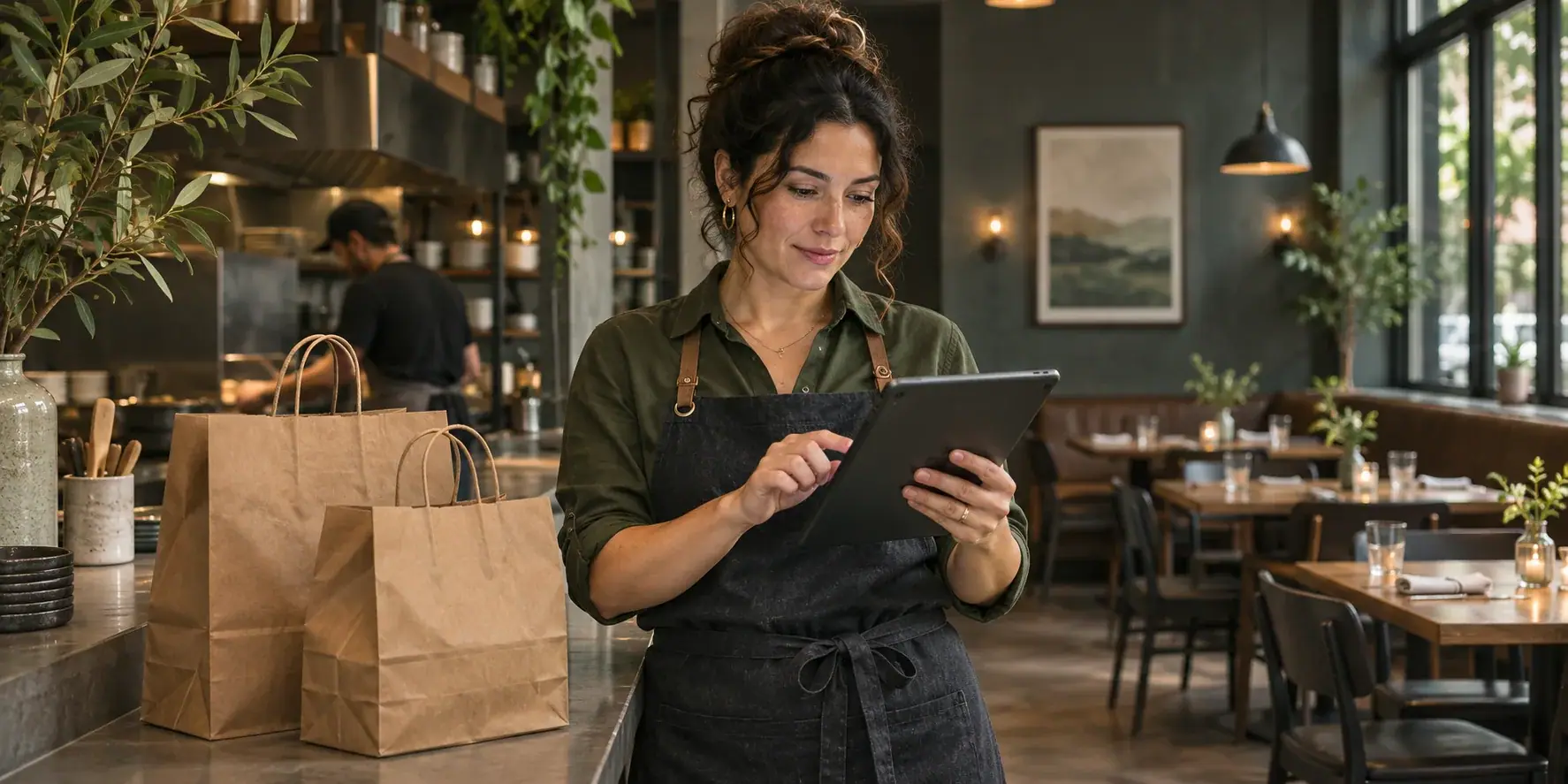
Not every guest sits at a table with a QR code. Walk-ins, takeaway and phone orders still happen, and they need to go through the same system, on the same board as table orders, so the kitchen sees one queue and not two.
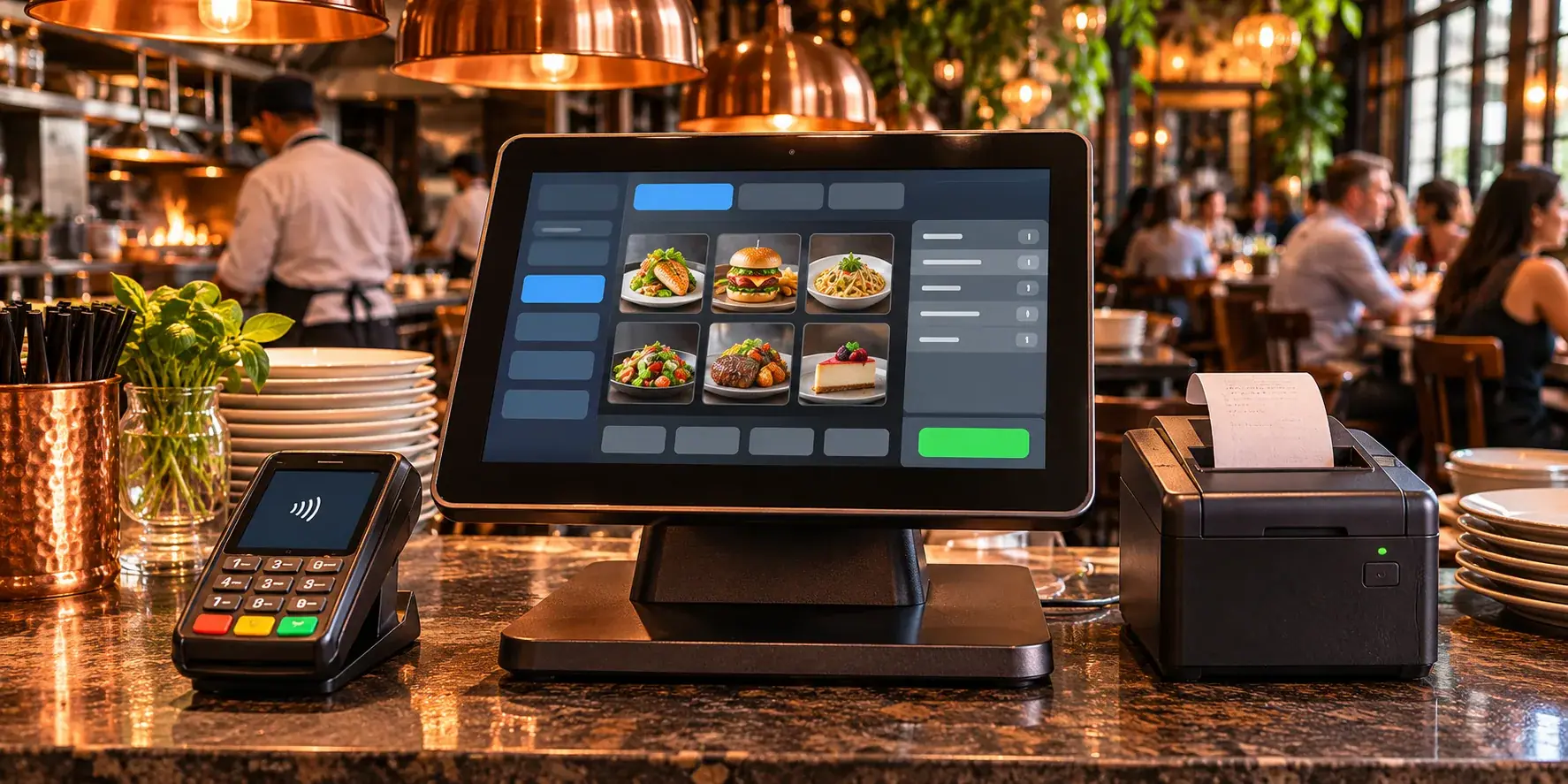
The counter is also where most bills are closed. A good setup closes the bill from the order itself, so the counter is not retyping what the guest already ordered. Every retyped order is a chance for a mistake.
Then there is the owner or manager view. A dashboard should show every table, order, service request and sale as it happens, and it should be where you change the menu and prices. If you run more than one venue, you want each site to keep its own prices and its own sold-out dishes while you see them all in one place.
A buyer's checklist for any table ordering system
Use this when you compare options. Ask every vendor the same questions and get the answers in writing.
| What to check | What good looks like |
|---|---|
| App download | None. The menu opens in the phone's browser from the scan. |
| Menu changes | You edit prices and dishes yourself, and every table sees the change within moments. |
| Sold-out dishes | One tap marks a dish sold out on every table's menu, before anyone orders it. |
| Allergens | Shown with each dish, easy for you to keep up to date. Check what your local rules require you to display. |
| Staff logins | Each person signs in with their own login or PIN, so you can see who did what, with no penalty for adding staff. |
| Devices | Runs on the phones, tablets and laptops you already have. Specialist hardware should be optional. |
| Internet dropouts | A clear answer on what keeps working if the Wi-Fi drops, and on which devices. |
| Payments | A clear answer on whether guests can pay at the table and, if not, how the bill is closed. |
| Data ownership | Your orders and menu are yours, exportable, and you can take them with you if you leave. |
| Commission | No percentage or per-order fee. A per-order cost is highest on your busiest nights (why that matters). |
| What it does not do | A straight list of gaps: stock, rotas, printing, delivery apps, payments. |
That last row is the one that tells you the most about a vendor. A team that can tell you plainly what its product does not do is usually a team you can trust on what it does.
Common mistakes with QR menu ordering
These come up again and again when restaurants introduce ordering at the table. None of them is about the technology being hard. They are about the rollout.
- Treating it as a PDF behind a code. A static menu image gives guests something to read but not something to order from, and you still have to update it by hand.
- Forgetting the kitchen. If guest orders arrive somewhere the kitchen does not look, someone ends up copying them onto tickets. Plan the kitchen screen first, not last.
- Leaving sold-out dishes on the menu. Nothing annoys a guest more than ordering a dish and being told ten minutes later that it has gone. Make marking sold out part of the kitchen's routine.
- Not testing in the real room. Scan every code at every table, in the evening lighting, on an older phone, with the Wi-Fi switched off. Fix what fails before guests find it.
- Taking staff off the floor. QR ordering frees staff from walking orders to the kitchen. It does not replace hospitality. Venues that use the freed-up time to look after guests get the most from it.
- Ignoring guests who would rather talk to someone. Some guests will always prefer to order from a person. Keep that option visible and make sure staff can add those orders to the same system.
- Choosing on the demo, not the Saturday. Every system looks good with one test order. Ask how it behaves with a full room, a backed-up kitchen and a dish that runs out halfway through service.
One example: how Zervoo handles it
Zervoo is our own product, designed, built and run by Upwwards, so take this as one worked example rather than a neutral review.
Guest menu. Guests scan the table's QR code and the menu opens on their own phone, with no app to download. Photos, prices, cooking times and allergens sit with each dish. Change a price, and every table sees it within seconds. Guests can ask for water, the bill or a waiter in one tap, and staff mark each request seen, then done.
Kitchen screen. Every order arrives on one screen with its table number, oldest first. Notes like "no chilli" stay on the dish they belong to, and one tap marks an order ready.
Counter (POS). Walk-ins, phone orders and paying at the counter sit on the same board as table orders, and the counter closes each bill from the order itself.
Dashboard. Every table, order, request and sale as it happens, from anywhere, with menu and price changes on the same screen. Several venues can run on one account, each with its own prices and sold-out dishes.
Staff and devices. Each person signs in with their own PIN, with no charge for extra staff logins. It runs in the browser on the phones, tablets and laptops you already have; a basic tablet is enough for a kitchen screen.
If the Wi-Fi drops. It needs an internet connection, but phones and tablets on mobile data carry on, and so do guests on their own data.
Data and pricing. There is no commission on orders. You can cancel any time and take your orders and menu with you.
What it does not do yet. Guests cannot pay from their phone yet: they pay the way they do today and you close the bill at the counter. Paying from the table is on the way, through your own payment provider. There is no stock, rota or payroll, delivery-app orders are not connected yet, and it does not print tickets or bills today.
The details, including plans, are on the Zervoo page.
Before you print a single code
Start with the kitchen, not the menu. Work out where the screen goes, who watches it and how a dish gets marked sold out mid-service. Then walk the guest flow yourself at a real table: scan, browse, order, ask for the bill. If any step makes you hesitate, it will make your guests hesitate too.
If an off-the-shelf system does not fit the way your venue runs, for example a hotel, a group with unusual menus or a flow that needs to connect to an existing POS, we also build custom hospitality software. Book a free discovery call and you will get a written estimate within two business days.